This topic explains how to trace table-level and column-level lineage in a model. You can trace lineage horizontally, to see how data flows upstream and downstream, and vertically, to see how objects have evolved across models over time.
For information about lineage concepts and relationships, refer to the Model Lineage topic.
Scenario: Validating the Lead‑to‑Cash Revenue Chain
The Lead‑to‑Cash model includes eight tables: Lead, Opportunity, Customer, Sales_Order, Sales_Order_Line, Invoice, Payment, and Receipt.
Before the model is shared with Finance and Sales leadership, the following two items must be confirmed:
-
The Order_ID column correctly connects Sales_Order to its related tables, both upstream and downstream, and its history across model versions is understood.
-
The Payment table has no unanticipated downstream dependencies other than the Receipt table, all upstream source tables have been identified and accounted for, and its origin and evolution across model versions is understood.
QDM Model Lineage lets you confirm both items directly from the diagram. You can view lineage in two ways:
Note: In every lineage view, the diagram uses consistent color coding: the selected object is blue, upstream sources are cyan, downstream dependents are green, and the number of relationships is shown in the summary box in purple. Unrelated objects are dimmed to emphasize the relevant path.
Trace Column Lineage
In the Sales_Order_Line table, trace the lineage of the Order_ID foreign key to verify that it is correctly connected to the rest of the data chain in both directions. You also trace the column's vertical lineage to confirm how it originated and evolved across model versions.
To view a column's lineage, follow these steps:
-
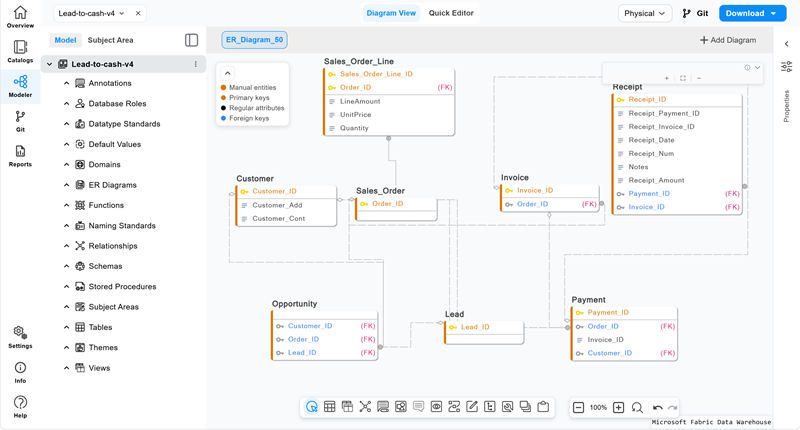
Open the model.
-
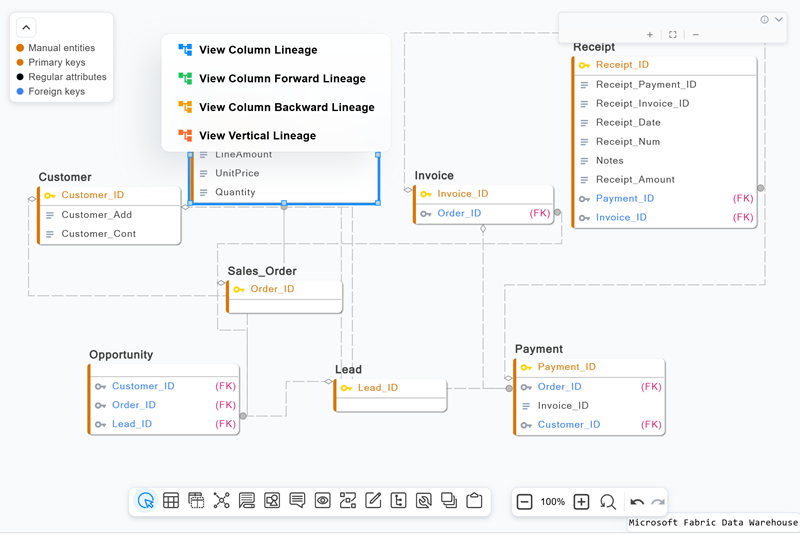
In the Diagram view, right-click the column whose lineage you want to view. For example, in the Sales_Order_Line table, right-click the Order_ID column.
A context menu opens with four lineage options.
-
Select the lineage view you need. You can repeat this step to view lineage in another direction or across model history:
-
View Column Lineage: Select to view the complete lineage of a column, including both upstream and downstream dependencies.
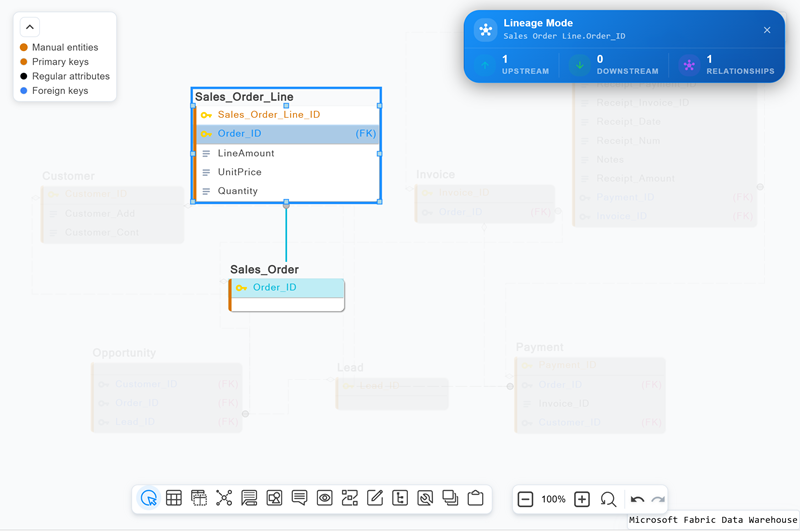
The diagram highlights the lineage of Sales_Order_Line.Order_ID in both directions, using the color coding described earlier. In this example, Sales_Order.Order_ID is the only upstream dependency and no downstream dependencies exist.
-
View Column Forward Lineage: Select to view only the forward lineage of the column and identify which columns depend on it.
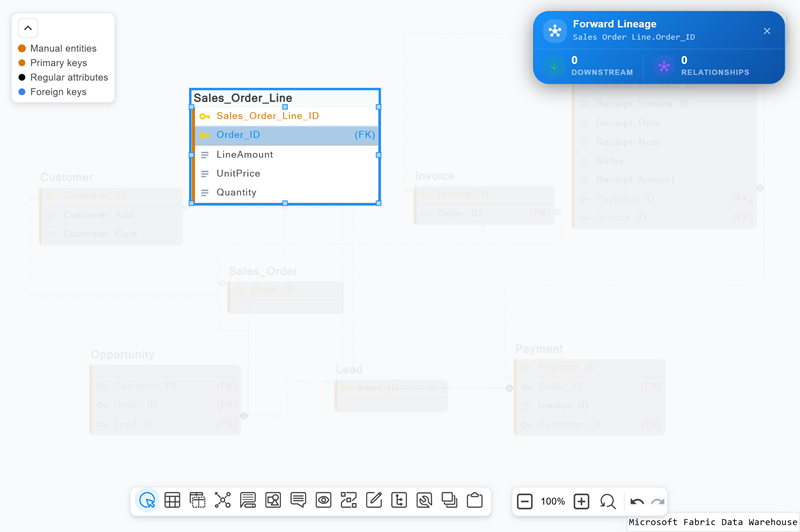
The diagram highlights Sales_Order_Line.Order_ID and its downstream lineage. In this example, no tables or columns depend on the selected column, so there are no downstream dependencies or relationships to display. The view helps you quickly verify that changes to the column will not affect any downstream tables.
-
View Column Backward Lineage: Select to view only the backward lineage of the column to identify where a column's data originates.
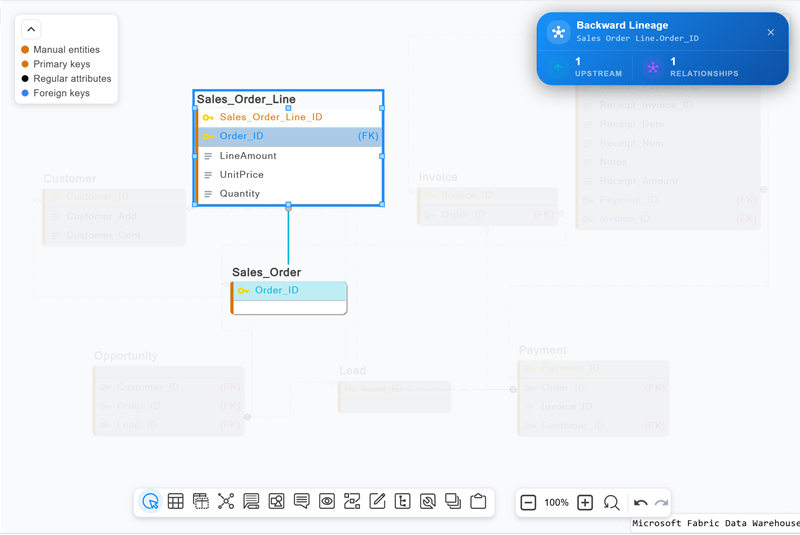
The diagram highlights the table and column connected to Sales_Order_Line.Order_ID in the upstream direction, tracing the lineage back to Sales_Order.Order_ID, the column on which it depends. In this example, there is one upstream dependency and one relationship. Unrelated tables are dimmed.
-
View Vertical Lineage: Select to view the complete vertical lineage of a column, including events such as reverse engineering from a script file or database, derivation from another model, and import history if the model was imported from an earlier version of a modeling application.
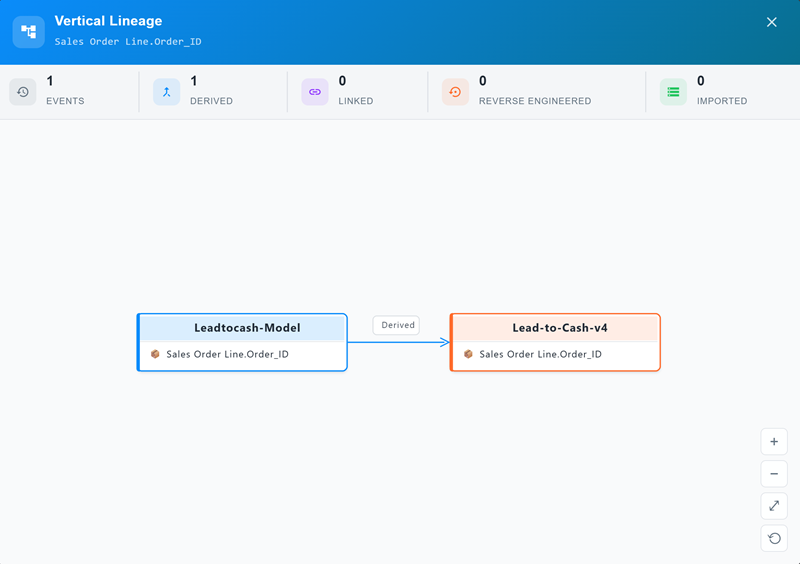
The diagram highlights one derivation event for Sales_Order_Line.Order_ID, from Leadtocash-Model to Lead-to-Cash-v4. There are no reverse-engineering, linked, or import events.
-
Trace Table Lineage
With the Order_ID column confirmed, the second item remains: verify that the Payment table in the revenue chain has no unexpected dependents and that its upstream sources are accounted for.
Instead of checking each foreign key individually, you can view lineage at the table level. Like column lineage, table lineage can be traced horizontally in two directions, upstream and downstream, and vertically across the model's history. You can inspect each direction separately, view both directions together in a single summary, or trace the table's vertical lineage over time.
To view a table's lineage, follow these steps:
-
With the model open, in the Diagram view, right-click the table whose lineage you want to view. For example, right-click the Payment table.
A context menu opens with four lineage options.
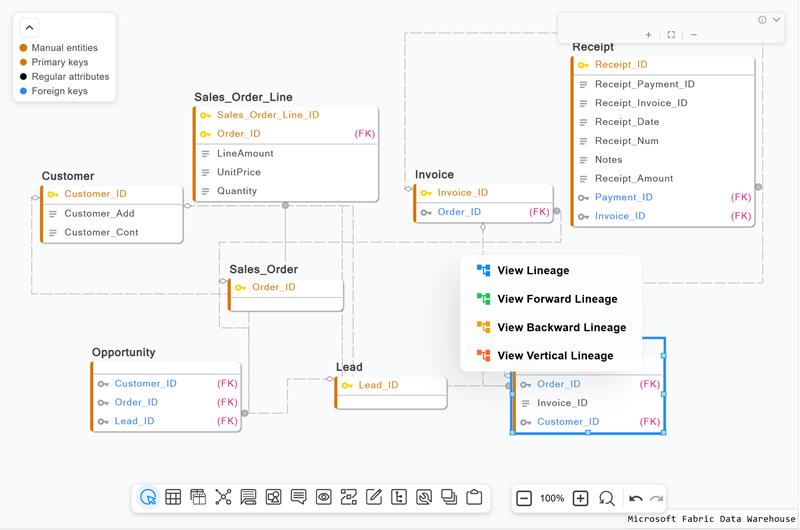
-
Select the lineage view you need. You can repeat this step to view lineage in another direction or across model history:
-
View Lineage: Select to view the complete lineage of a table, including both upstream and downstream dependencies.
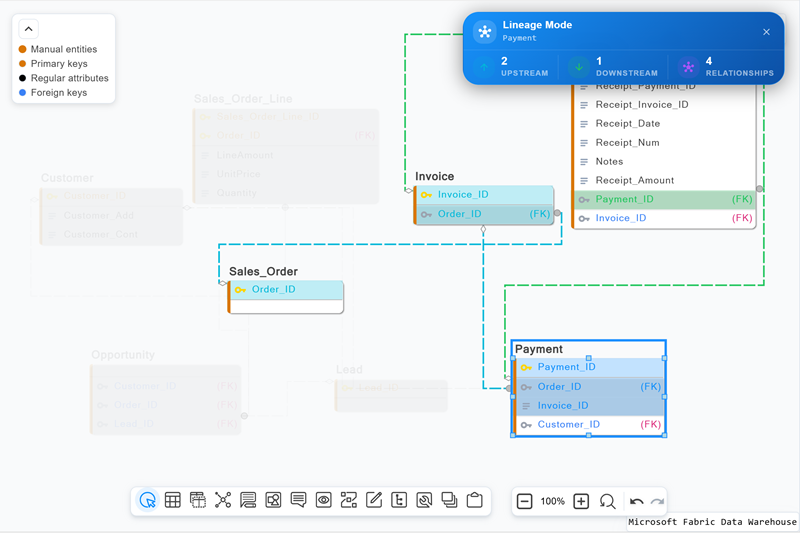
The diagram highlights the complete lineage for Payment, using the color coding described earlier. In this example, the table has two upstream dependencies, one downstream dependency, and four relationships. The view displays the full dependency chain, from source tables through the selected table to downstream objects, confirming that Receipt is the only downstream table and that all upstream sources are accounted for.
-
View Forward Lineage: Select to view only the forward lineage of the table and identify which tables depend on it.
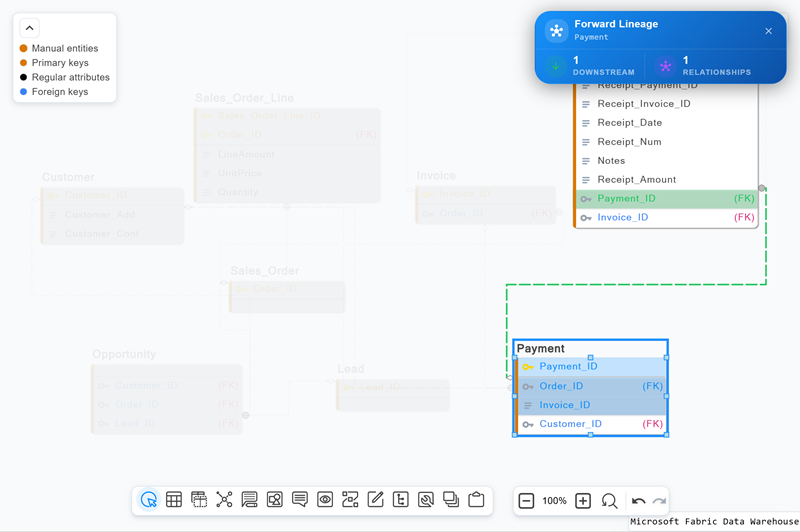
The diagram highlights the downstream lineage for Payment. In this example, Receipt is the only downstream table, connected through a single relationship. Unrelated tables are dimmed, allowing the relevant lineage path to stand out immediately.
-
View Backward Lineage: Select to view only the backward lineage of the table to identify where a table's data originates.
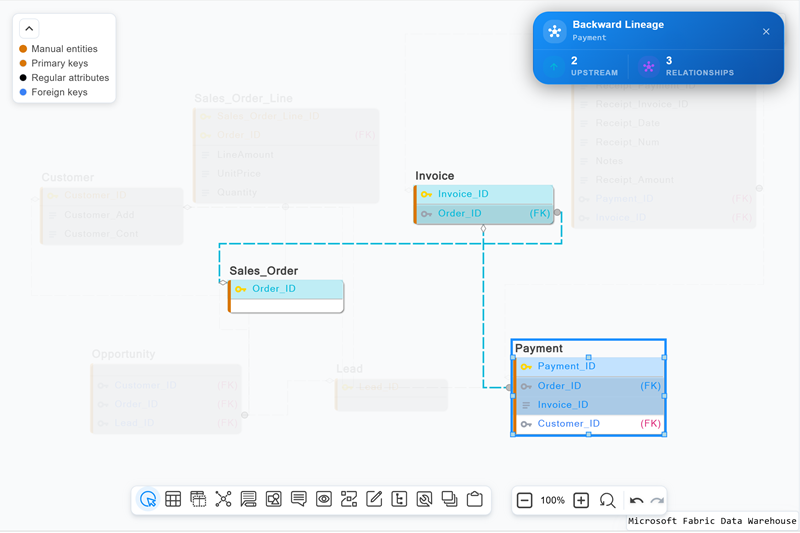
The diagram highlights the tables and relationships in the upstream lineage of the Payment table. In this example, Payment has two upstream dependencies and three relationships. The lineage path traces back through Invoice and Sales_Order, making it easier to understand how data flows into the selected table.
-
View Vertical Lineage: Select to view the complete vertical lineage of a table, including events such as reverse engineering from a script file or database, derivation from another model, and import history if the model was imported from an earlier version of a modeling application.
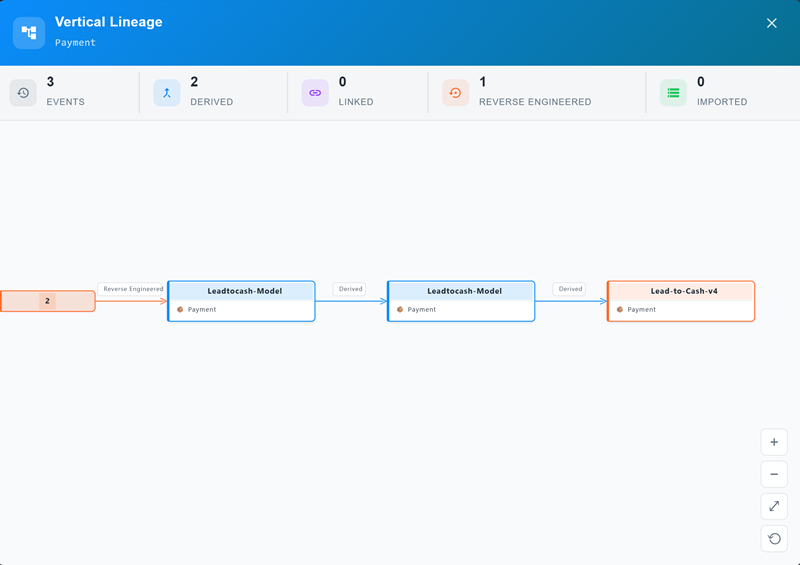
The diagram highlights three lineage events for the Payment table: one reverse-engineering event and two derivation events. It traces Payment from a reverse-engineered source through two model versions to Lead-to-Cash-v4. There are no linked or import events.
-
Model Lineage lets you visually validate table and column relationships. Use these views to confirm individual dependencies, see the full upstream and downstream picture, and trace how objects have evolved across model versions.
Note: Model Lineage is also supported for views and materialized views.